Explore key tools, smart features, and expert insights...
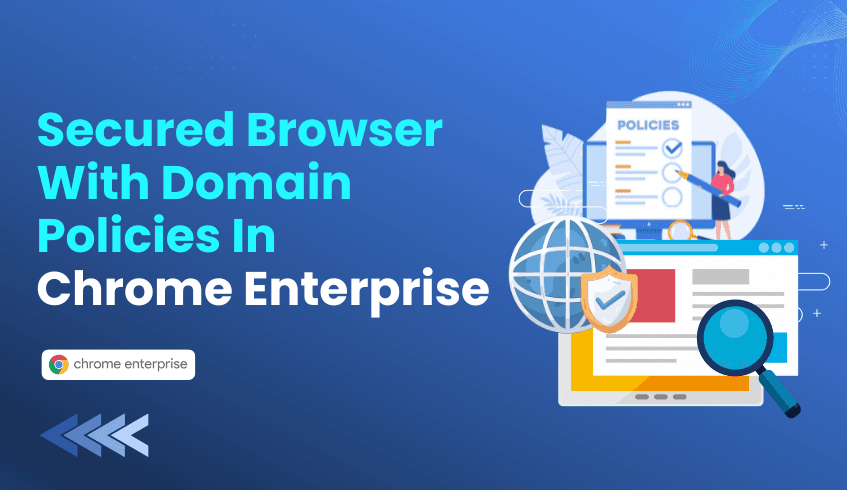
The enterprise browser has become the center of work. It is where employees access SaaS tools, identity platforms, shared data, and internal services. As this shift has accelerated, the browser has also become a leading attack surface, especially for threats delivered through unsafe websites, malicious scripts, phishing domains, and proxy-based evasion. This is where domain-level governance evolves from static lists into a more intelligent model powered by Chrome Enterprise Premium.
Before adopting advanced capabilities, administrators need a solid baseline using the static controls available in Chrome Enterprise Core. These policies form the “hard perimeter” for predictable risks.
This policy blocks access to specific URLs or domains outright. When it’s useful:
Preventing access to known unsafe sites
Blocking non-work destinations that decrease productivity
Shutting down outdated internal portals still bookmarked by users
When triggered, the browser presents the standard “Blocked by Administrator” message, clearly signaling the restriction.
This serves as the override mechanism. In a “default deny” scenario, the blocklist covers all domains (*), while the allowlist explicitly defines business-critical sites.
Where it shines:
Kiosks
High-security workstations
Contractor or temporary devices
Environments with narrow workflow requirements
Chrome evaluates policies by specificity, so a precise allow rule always outranks a broad block rule.
While static lists are essential, they cannot keep up with the constantly evolving threat landscape. Millions of new domains appear every day, many of them malicious, short-lived, and designed to bypass outdated filters.
Chrome Enterprise Premium introduces an intent-driven, context-aware, real-time approach to domain governance.
Maintaining large blocklists is challenging. Category policies dramatically reduce that burden.
Google continuously categorizes the web using its global crawling infrastructure. Administrators simply apply policies that block entire high-risk categories, such as:
Malware and phishing
Newly registered or unclassified domains
Proxies and anonymizers
Adult or inappropriate content
This shifts domain governance from manual list maintenance to automated safety intelligence.
Traditional filter lists are reactive. They may be outdated by the time a user loads a risky link.
Enterprise Real-Time URL Check analyzes pages using Google’s threat intelligence at the moment the user attempts to load them. This blocks fast-moving phishing sites, often created and dissolved within minutes, before they can compromise credentials.
Not every risk requires blocking an entire domain. Some sites are valuable for business but risky for data handling.
Chrome Enterprise Premium allows administrators to:
Block file uploads
Prevent copy/paste of sensitive data
Control high-risk actions on otherwise permitted domains
Example: Allow browsing on linkedin.com but block sensitive data uploads that could lead to accidental exposure.
A successful domain-protection plan uses layered controls:
Layer 1 Baseline (Core Policies) Block known static domains using URLBlocklist.
Layer 2 Broad Safety (CEP Filtering) Apply category filters to neutralize entire classes of unsafe content.
Layer 3 Real-Time Protection Activate Enterprise Real-Time URL Check for zero-day phishing defense.
Layer 4 Granular DLP Rules Allow productive tools but restrict risky actions within them.
For gray-area cases, a warning page interrupts the session, signals caution, and lets the user decide whether to proceed. This reduces helpdesk tickets while still discouraging potentially unsafe browsing.
Strong domain policies require visibility. The ChromeOS Readiness Tool provides exactly that through its Browser Insights module.
1. Detect Extension-Based Bypass Attempts Users often install anonymizer extensions to escape domain filters. The tool reveals these extensions across your environment so administrators can address them proactively.
2. Map Legacy Dependencies Blocking a domain without understanding dependencies can break critical workflows. The tool highlights the real applications and browser-based services your workforce relies on.
3. Confirm Management Readiness Chrome Enterprise Premium domain policies depend on properly managed browser environments. The tool lists OS/browser versions, so the IT teams can proactively look into the types of versions used across the enterprise.
→ Recommended Action: Run the ChromeOS Readiness Tool. Use the insights to shape your initial allowlists, identify risky extensions, and validate that devices can fully support Chrome Enterprise Premium protections.
You can’t protect what you can’t see. Chrome Enterprise Browser delivers the controls, but the ChromeOS Readiness Tool gives you the visibility to apply those controls confidently without disrupting legitimate workflows or overlooking hidden risks.
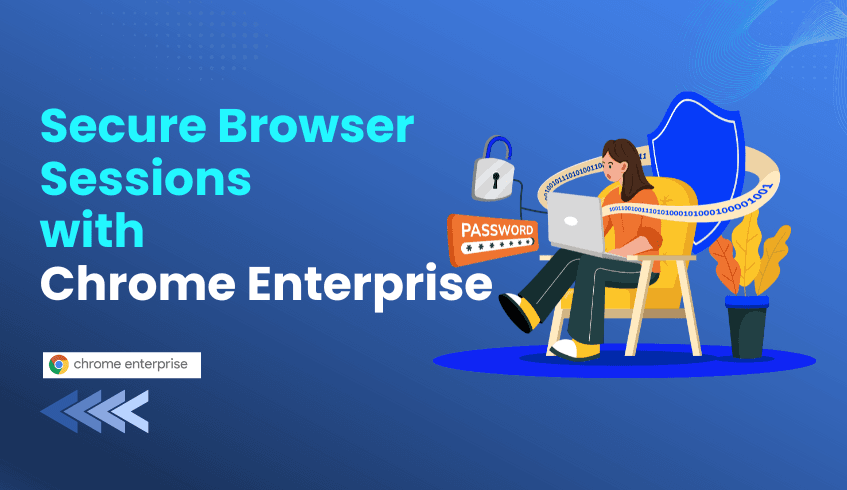
The Chrome Enterprise browser has become the center of modern work. With organizations increasingly relying on SaaS applications, web-based workflows, and identity-first security models, the browser has become the primary access point to corporate data. This shift brings flexibility, but it also introduces new risks, especially when attackers target session cookies and tokens inside the browser.
One of the most impactful threats today is session hijacking, where an attacker steals a user’s active session token and uses it to impersonate them. Because bearer tokens grant access to whoever holds them, these attacks bypass passwords, multi-factor authentication, and most forms of network security. This is why the industry is moving toward identity-centric and Zero Trust-aligned protections that focus on the browser itself. This is where Device-Bound Session Credentials (DBSC) play a critical role.
Traditional session tokens are powerful, but they come with a fundamental weakness: they can be copied, reused, and replayed on any device.
In many organizations, the most common sources of token theft come from:
Over-privileged or compromised browser extensions
Extensions with wildcard URL access
Code capable of reading cookies or intercepting network traffic
Malicious clones that imitate legitimate extensions
Because extensions operate inside the browser’s security context, they often have visibility into cookies, headers, or Authentication tokens. This level of access turns them into high-value targets for attackers. Once a token is stolen, attackers can log in remotely and maintain persistent access without detection.
The reality is clear: Multi-factor authentication alone cannot stop a stolen session token.
Device-Bound Session Credentials introduce a fundamental upgrade to session security by attaching every login session to a cryptographic private key stored directly on the user’s device.
This private key is:
Created locally
Non-exportable
Protected by device hardware
Because the key never leaves the device, it cannot be copied or reused. Even if an attacker steals a cookie or token, they cannot authenticate without also possessing the private key.
This creates a major shift in security:
Stolen tokens no longer grant remote access
Replay attacks are blocked at the protocol level
Session integrity becomes continuously validated
Attackers lose their primary pathway into SaaS applications
DBSC effectively removes the value of exfiltrated browser cookies.
While DBSC provides the cryptographic foundation, Chrome Enterprise Premium brings the policy-based controls needed to apply it across an organization.
Admins can build rules that grant access only when:
The session is device-bound
The browser passes key-binding checks
The device meets security requirements
This creates a strong alignment with Zero Trust by validating both identity and session authenticity during every access attempt.
Chrome Enterprise Premium also addresses one of the biggest drivers of token theft: over-privileged extensions. Admins can:
Block extensions requesting high-risk permissions
Build controlled allowlists
Remove shadow extensions from the environment
This reduces the chance of local compromise and minimizes exposure to malicious or cloned extensions.
Even when defenses are strong, organizations must still prepare for potential compromise. Chrome Enterprise Premium supports this with URL governance controls that stop malicious outbound communication.
With network egress rules, admins can:
Block known malicious domains
Stop access to command-and-control servers
Limit data exfiltration attempts
Restrict browsing to approved destinations
When an attacker cannot send stolen data out of the device, the attack chain collapses.
Combining DBSC with Chrome Enterprise Premium allows organizations to redesign the browser as a Zero Trust-aligned endpoint.
Together, they deliver:
Session integrity through device-bound authentication
Least privilege through extension controls
Assume breach through network egress restrictions
As session hijacking grows in frequency and sophistication, these layers offer a strong, practical defense for enterprise environments. They strengthen identity, protect the browser, and support safer access to sensitive applications.
Transitioning to a Zero Trust browser environment requires more than just policy updates; it requires visibility into your current infrastructure. Before you can effectively lock down extensions or enforce Device-Bound Session Credentials (DBSC), you need to know exactly what is running on your endpoints.
The ChromeOS Readiness Tool serves as a critical diagnostic bridge for this transition:
Audit Extension Risks: The tool’s Browser Insights feature provides a centralized view of browser and extension usage across your managed devices. This allows IT teams to identify the exact "over-privileged" and "shadow" extensions mentioned above before they become an attack vector.
Validate Device Compatibility: DBSC relies on device hardware capabilities. ChromeOS Readiness Tool assesses your current fleet’s compatibility to transition to ChromeOS, an operating system that natively supports the hardware-backed security and verified boot processes required for a robust Zero Trust architecture.
By running a readiness assessment, organizations can identify vulnerable endpoints and unauthorized extensions, laying the necessary groundwork for a successful Chrome Enterprise Premium deployment.
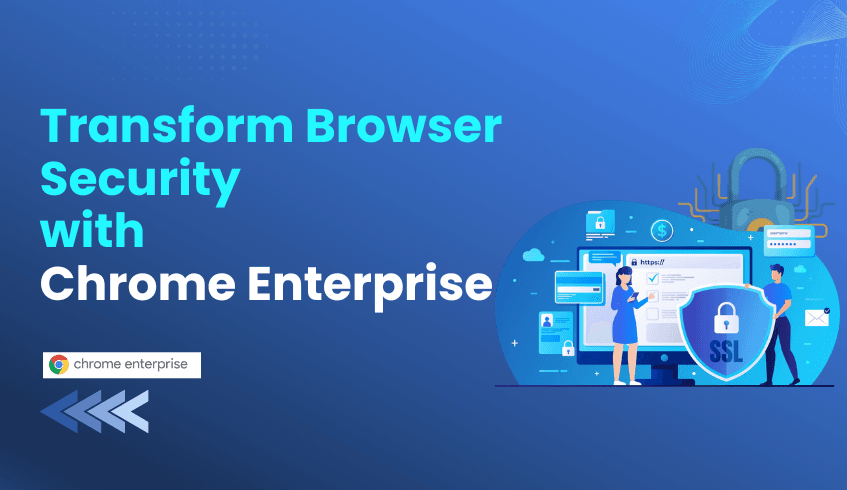
Google Chrome is already one of the most popular web browsers in the world, but for businesses and large organizations, Chrome Enterprise unlocks a new dimension of control, security, and productivity. Chrome Enterprise takes the familiar, fast browser users already know and builds in powerful management and protection features that go well beyond what the free version of Chrome offers.
At its core, the free Chrome browser is designed for individual use: fast updates, sandboxing, Google Safe Browsing, and a simple install. But it lacks centralized administrative control, detailed reporting, and enterprise-grade data protection.
In contrast, Chrome Enterprise gives IT and security teams the ability to apply and enforce hundreds of policies across their organization: controlling extensions, managing updates and rollbacks, limiting which URLs can be accessed, and gathering browser telemetry. That makes a big difference for companies that need to govern a fleet of devices, whether these devices are fully managed or even employee-owned (BYOD).
Google offers two versions of Chrome Enterprise: Core and Premium.
Chrome Enterprise Core is free to deploy. It includes centralized browser management, policy controls, and reporting capabilities. You get basic malware and phishing protection through Safe Browsing, and you can manage extensions and user settings from the cloud.
Chrome Enterprise Premium, on the other hand, is a paid upgrade (around US$6 per user per month, according to Google) for organizations that require stronger security. Premium adds advanced protections like deep malware scanning, real-time phishing defense, data loss prevention (DLP), and context‑aware access controls (i.e., Zero Trust policies that adapt based on user identity, device health, or location). Enterprise also offers richer security reporting and visibility so IT can more proactively detect, investigate, and respond to threats.
Enhanced Security: With Premium, companies can prevent sensitive data leaks through DLP, enforce context-aware access, and integrate threat signals from the browser into their security operations.
Centralized Control: IT admins gain control over hundreds of policies. They can manage which extensions are allowed, enforce versioning, and deploy settings across all users from a cloud console.
Zero Trust Access: Premium allows for intelligent, context-aware access control, for example, letting only “trusted” devices or locations access certain internal web apps.
Scalable Insights: Organizations can monitor risky behavior, see where data is being transferred, and integrate browser data into broader security operations.
Lower Risk for BYOD and Hybrid Teams: Whether employees use corporate laptops or personal devices, Chrome Enterprise helps ensure security policies are uniformly enforced.
Conclusion: For individual users, the free version of Chrome is more than sufficient. But for businesses, especially those that care deeply about data security, regulatory compliance, and centralized management, Chrome Enterprise (Core or Premium) is a smart investment. Premium, in particular, offers powerful, enterprise-grade protection without forcing users to switch browsers. With Google’s backing, it’s not just about browsing; it’s about making the browser itself a frontline of defense.
In fast-paced enterprise migration projects, visibility is everything. Today, we’re introducing a major upgrade to the ChromeOS Readiness Tool Report Generator: the new Progress Tracking feature. This enhancement gives administrators live, centralized insights into upload activity across their environment, helping teams work with the most accurate, complete data during migration planning.
As the ChromeOS Readiness Tool collects device insights and application usage logs, this information is temporarily stored on user machines before being securely uploaded to a designated storage location.
The new Progress Tracking feature enables real-time monitoring of whether device data files are being successfully uploaded to the designated storage locations, either a network shared folder or Google Cloud Storage (GCP).
With this visibility, teams can quickly spot issues, avoid incomplete data sets, and keep report generation running smoothly.
Progress Tracking focuses on the upload status of three critical files on each device:
Symmetric Key File
Device Insight Data Log
Common Statistic Log
These files form the backbone of ChromeOS readiness reporting, and the new feature makes it easy to confirm they are successfully delivered.
Each device is now assigned one of three straightforward statuses:
Success – All three files have been successfully uploaded within the defined time period.
Pending – The upload process for one or more of the files is still ongoing.
Failed – After the Symmetric Key file is uploaded, if either the Device Insight Data Log or the Common Statistic Log is not uploaded within the next two days, the status is marked as Failed.
This clear classification system helps IT teams act quickly and maintain data completeness throughout the collection phase.
The Progress Tracking feature is fully available in English and Japanese, aligning with the ChromeOS Readiness Tool’s expanded Full Japanese language support across its components. This makes it easier for global organizations, especially teams operating in Japan, to manage their ChromeOS migration confidently.
The new Real-Time Progress Tracking capability turns what was once a blind spot into a transparent, actionable workflow. With immediate clarity on which devices have successfully submitted their readiness data and which need intervention, IT teams can maintain momentum and build toward a smoother, more predictable ChromeOS transition.
A successful ChromeOS migration starts with a clear understanding of your enterprise application portfolio. The ChromeOS Readiness Tool performs this essential evaluation, typically classifying Windows applications as Chrome Ready, Possibly Ready, Blockers, and Unknown.
However, some applications, especially in-house, legacy, or niche software, may appear with an Unknown status. This temporary classification remains in effect while the ChromeOS Readiness Tool team continues to expand its compatibility database with new solutions and updates.
For IT administrators, 'Unknown' applications create a planning blind spot. To address this, the ChromeOS Readiness Tool now includes a Custom Readiness Status feature in the Report Generator, giving you the power to define readiness for these applications using your specialized knowledge.
The Custom Readiness Status feature allows administrators to manually assign ChromeOS readiness statuses to in-house or organization-specific applications marked as Unknown. By doing so, you ensure accurate categorization that reflects your organization’s actual compatibility landscape.
This means devices reliant on these applications will have a precise readiness status, such as Ready to Switch, Ready with Verification, or Blocked from Switching, which improves migration planning and decision-making.
How to Apply Custom Statuses (Step-by-Step)
Custom status settings become available in the Report Generator after the data collection period ends and the report data is ready. Follow these steps:
Enable the Feature: Click on the “Regenerate” option and check the box labeled “Set Custom Readiness Status.”
Access the Customization Screen: The tool will display a list of organization-specific applications identified as Unknown.
Define Status: Use the dropdown menu in the Status column to assign each application a status: Ready, Blocker, or leave as Unknown.
Assign Priority: Use the dropdown in the Priority column to set a priority level: High, Mid, or Low. This helps focus migration efforts on the most critical applications first.
To streamline administration, the feature includes simple controls for managing priority levels:
Save Your Settings: Lock in your configured priorities for future reports.
Load Previous Settings: Apply priority levels from earlier report generations or assessment rounds to maintain continuity.
Reset Priorities: Revert to previously saved priority levels if adjustments are needed.
These tools allow administrators to manage readiness data strategically, without having to redo manual settings each round.
While setting custom statuses, you may have the option to contribute data to improve the ChromeOS Readiness Tool database. You can consent to share the Process Name of unknown applications.
Importantly, no personal data or application usage information is shared, keeping your organization’s security and privacy intact.
By leveraging the Custom Readiness Status feature, IT teams can transform previously unknown applications into actionable, precise data points. This ensures migration strategies are fully informed, organization-specific, and strategically prioritized, reducing uncertainty and enabling a smoother transition to ChromeOS.
The ChromeOS Readiness Tool helps organizations assess their readiness for ChromeOS migration. But once your initial assessment period ends and remediation actions are complete, you might need updated insights to measure progress or continue your analysis.
Good news: you don’t need to start from scratch. The ChromeOS Readiness Tool allows administrators to reconfigure the tool and initiate a new round of data collection with just a few steps.
Here’s how to initiate a seamless second assessment round using the built-in reconfiguration process.
Step 1: Start the Reconfiguration
Open the existing ChromeOS Readiness Tool Installer. On the initial screen, click “Reconfigure” if you wish to start a new assessment. A confirmation modal will appear in the ChromeOS Readiness Tool. Select “Yes” to proceed. This triggers the setup flow for the next round of data collection.
Step 2: Choose the Storage Media
During reconfiguration, you can select your preferred data storage option, based on how your organization originally deployed the tool.
The ChromeOS Readiness Tool supports multiple deployment methods, including:
Active Directory–based deployment
Other deployment options (If the organization is using UEMs)
Depending on your setup, you can choose where your new assessment data will be stored. The available storage options include:
GCP Storage only
Network Shared Folder only
Network Shared Folder + GCP Storage (hybrid)
Here’s how each option works:
🔹 If you select GCP Storage only(This option is available if you select Othe other Deployment option),
You’ll be prompted to connect your GCP storage bucket. This ensures all assessment data is securely stored and accessible via the ChromeOS Readiness Tool web dashboard. Once connected, click “Next” to proceed.
🔹 If you select Network Shared Folder only
You’ll need to create and connect a network shared folder that will act as your data repository. Enter the folder path in the tool and verify the connection before continuing.
🔹 If you select Network Shared Folder + GCP Storage
In this case, you’ll connect both: Your GCP bucket (for dashboard access and cloud backup), and. Your network shared folder (for local accessibility and redundancy). Once both connections are validated, click “Next.”
This flexible setup allows administrators to maintain continuity with their preferred deployment model while ensuring secure, organized data storage.
Step 3: Authenticate and Confirm Company Details
Next, sign in with your Google account to link your organization data.
If you use the same account as the previous setup, your company information will auto-populate. The tool will also display whether the earlier round’s data collection is complete or still in progress. Review and click “Next.”
Step 4: Configure Assessment Settings
You can now customize your new assessment round:
Assessment Duration: Choose the data collection duration of your preference.
Browser Insights: Enable this option if you’d like to include browser-related analytics.
Tray Icon Visibility: Decide whether to show or hide the tray icon on client PCs.
Step 5: Export Keys and Prepare for Redeployment
Once the reconfiguration finishes, export the private key and store it in a secure place.
Private Key File – Needed to view assessment details in the Pro or Partner Dashboard.
Wrapping Up
By following these reconfiguration steps, IT teams can easily launch a second assessment round of the ChromeOS Readiness Tool ChromeOS Readiness Tool gaining fresh, validated insights into app performance, compatibility, and migration progress.
With each new round, your organization stays equipped with up-to-date readiness data, helping you make informed decisions and move confidently toward a ChromeOS-optimized environment.
Transitioning your organization to ChromeOS promises efficiency, security, and a cloud-first future. The first step is to assess your environment using the ChromeOS Readiness Tool.
Before running a full assessment, it’s crucial to confirm that your Windows devices are compatible with the tool. The Prerequisite Check Script simplifies this process, helping IT teams avoid deployment errors and start assessments smoothly.
The script verifies critical system requirements upfront, reducing errors, guesswork, and deployment delays. It supports two deployment flows:
Enterprise Flow – Windows Server Active Directory environments
Other Deployment Options Flow – UEM or cloud-based environments
Separate compatibility checklists for each flow are available in the Resource Center.
The script ensures that both server and client machines meet minimum hardware and software requirements for the ChromeOS Readiness Tool.
Client Operating Systems: Windows 11, 10, or 8.1
.NET Versions: .NET Framework 4.8 or higher
Enterprise Flow: .NET runtime 8.0.0 or higher
Other Deployment Options Flow: .NET Desktop Runtime 8 or higher
For Active Directory environments, the script checks:
Compatible Windows Server OS (2025, 2022, 2019, 2016)
Active Directory setup and domain join
Required server roles and features, including Active Directory Domain Services, File and Storage Service, and Group Policy Management
For UEM or cloud-based setups, it confirms:
A supported Endpoint Management tool (e.g., Intune, Tanium, Workspace One)
PowerShell capabilities to run scripts as Administrator
MSI installation support for deploying applications
The latest version of the ChromeOS Readiness Tool introduces a unified deployment package for the Other Deployment Options Flow.
Combines the script and installer into a single setup file, reducing manual steps
Supports Batch execution, making it compatible with UEM tools that don’t support PowerShell
Running the Prerequisite Check Script is like checking the runway before takeoff. It ensures your infrastructure meets all requirements, reducing errors and preparing your environment for a smooth, accurate migration assessment.
By taking this step first, IT teams gain clarity and confidence, paving the way for a successful ChromeOS deployment.
The Prerequisite Check Script helps your organization:
Avoid deployment errors
Validate infrastructure ahead of assessments
Start migration planning with confidence
A successful ChromeOS migration starts with preparation, and the Prerequisite Check Script is the key to getting it right the first time.
Run the check, validate your setup, and move forward with a smooth, secure, and efficient deployment.
Migrating to ChromeOS marks a major step toward a secure, cloud-first workplace, but it also brings one common question: What data does the readiness tool actually collect?
The ChromeOS Readiness Tool was built to help IT teams evaluate their environment, identify app and device compatibility, and prepare for migration, all while maintaining full transparency and privacy.
This article breaks down what data the tool collects, how it safeguards that data, and why employee activity remains completely private.
The ChromeOS Readiness Tool provides IT teams with actionable visibility across their current environment, focusing on application usage, device readiness, and peripheral integration needed for a ChromeOS migration.
Its Data Collectors operate within a defined time window, tracking usage patterns that support migration planning while aligning with the GDPR principle of Data Minimization.
Application Logs – Records when apps start and end in the foreground and background.
Peripheral Details – Identifies connected devices such as monitors, barcode readers, and printers.
Device Metadata – Captures basic identifiers like device name and domain once per machine.
Device Name, Domain Name – Identify the originating device.
Process ID, Process Name, Product Name – Identify each application instance.
Window Title, Start/End Time – Calculate total usage duration.
Browser Usage and Version Data
Extension Details (which extensions are active, and on which devices)
The ChromeOS Readiness Tool is an IT environment assessment solution, not a user monitoring system.
Usernames or passwords
Keystrokes or mouse clicks
Personal documents or browsing content
Health, financial, or other sensitive information
This separation keeps the focus on operational readiness, never personal behavior.
Every stage of data handling follows a defense-in-depth approach with encryption and controlled access.
All data is protected with AES and RSA encryption, both in transit and at rest.
Log files are encrypted locally using AES keys.
Those keys are then encrypted with the server’s RSA public key and decrypted only by its private key.
Only authorized administrators can view readiness results.
The web dashboard requires the private key created during deployment, available only to the deployer.
Collected data remains securely inside the organization’s boundary.
The ChromeOS Readiness Tool adapts to your preferred deployment method.
Deployment Flow | Infrastructure Focus | Data Storage Location |
Enterprise Flow | Active Directory / On-prem | Network Shared Folder or GCP Cloud Storage (or both) |
Other Deployment Options Flow | Cloud / UEM infrastructure | Direct upload to GCP Cloud Storage |
During collection, logs stay temporarily on the user’s device. After encryption, they upload automatically after midnight; if the device is offline, the upload resumes once it’s back online.
Think of the ChromeOS Readiness Tool as a secure digital consultant. It quietly observes which apps run, how long they’re active, and which devices they rely on while remaining blind to private content.
Its design philosophy is simple: gather operational insights, protect personal boundaries, and foster organizational trust.
Every data point the ChromeOS Readiness Tool collects supports one purpose: helping your organization move to ChromeOS with confidence. Built on transparency, minimal data collection, and strong encryption, it empowers IT teams to make informed migration decisions without compromising employee privacy.
In the era of digital transformation, the ChromeOS Readiness Tool proves that readiness and responsibility can move forward together.
In the modern digital workplace, browsers are the front door to every online activity, from accessing cloud platforms to handling internal systems. Yet, with so many different browser types and versions running across multiple devices, it can be difficult for IT teams to maintain consistency, security, and control.
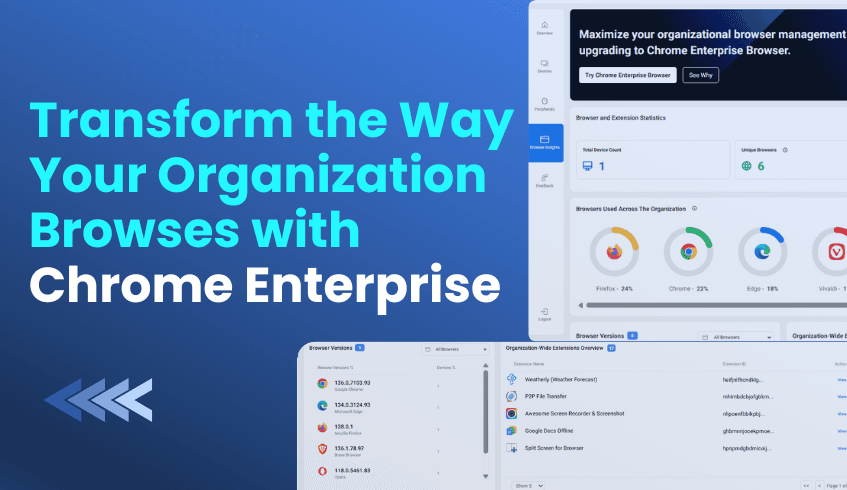
The ChromeOS Readiness Tool solves this challenge with its Browser Insights section in the web dashboard. It provides organizations with a complete view of browser activity across their fleet, showing which browsers and versions are in use, what extensions are installed, and how browsers are distributed across devices and domains. This clarity helps teams identify outdated browsers or potentially risky extensions and take quick action to maintain compliance and security.
All data collected by the tool is fully encrypted, never includes personal or privacy-sensitive information, and is accessible only to authorized users. The platform is also SOC 2 certified, ensuring that every piece of data is managed with enterprise-grade security standards.
Many companies still rely on unmanaged browsers like the free versions of Chrome or Edge. While these are suitable for everyday users, they lack the advanced controls and protection features needed for enterprise environments. Over time, that gap in management and security can expose organizations to malware, phishing, and other browser-based attacks.
A great example comes from Snap Inc., which adopted Chrome Enterprise and its managed Chrome browsers to support its global workforce. By using built-in extension controls, Snap was able to block unverified or high-risk add-ons and allow only trusted extensions. The company also implemented Chrome’s zero-trust access model, ensuring that corporate web applications could only be accessed through compliant, secure browsers and devices. This proactive approach significantly reduced exposure to browser-borne threats and streamlined IT management.
Another study by Forrester Consulting revealed that enterprises using Chrome Enterprise avoided millions of dollars in breach costs and compliance fines. Organizations that had previously used unmanaged browsers struggled to maintain visibility, leaving them open to data leaks and phishing attempts. Chrome Enterprise changed that by providing centralized management, policy enforcement, and automatic security updates, closing the door to many of the attacks that exploit outdated browser versions.
These stories show how stronger browser management directly improves security and productivity, and how using a readiness tool like yours helps organizations identify where they currently stand and what needs to change.
The Browser Insights section of the ChromeOS Readiness Tool doesn’t just present data; it empowers decision-making. IT teams can instantly see which browsers are outdated, which extensions are being used, and which devices are out of compliance. Based on this analysis, the tool even recommends upgrading to the Chrome Enterprise Browser, guiding organizations toward a more secure and manageable environment.
For companies planning a move to Chrome Enterprise or ChromeOS, this data is invaluable. It allows them to clearly understand their current browser landscape, prioritize updates, and plan a smooth transition to a secure, cloud-ready ecosystem.