Explore key tools, smart features, and expert insights...
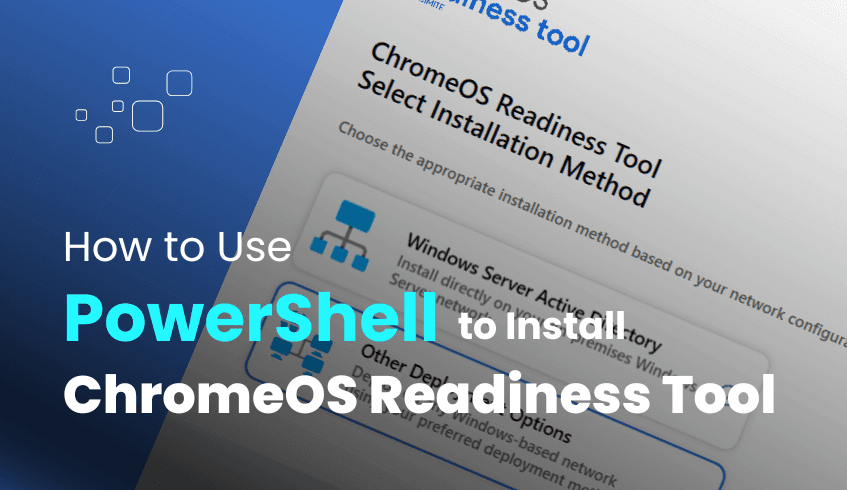
In today’s growing IT Environment, cloud-first strategies are becoming the norm for organizations aiming to modernize IT operations. The ChromeOS Readiness Tool supports this transformation by helping IT teams assess compatibility for a seamless move to ChromeOS. For organizations that rely on Unified Endpoint Management (UEM) rather than Active Directory, the PowerShell Flow offers a lightweight, cloud-optimized deployment method.
Here’s a practical overview of how to install and deploy the tool using the PowerShell method.
The PowerShell Flow, also known as PowerShell Installation, is purpose built for
Organizations using UEM software to install applications across the network
Environments that do not utilize Active Directory
IT teams seeking a flexible agent deployment
Begin by downloading the official MSI installer for the ChromeOS Readiness Tool from the ChromeOS Readiness Tool website. Launch the installer on an administrator’s device and complete the guided setup.
Once the tool launches:
Select PowerShell Flow as your deployment method by clicking on the “Other Deployment Methods” option.
Sign in with a Google account, this will be used to access your web dashboard later.
Enter organization details, including your company name, address, and logo (optional).
PowerShell Flow supports only Google Cloud Storage (GCP Storage Buckets).
Network Shared Folders are not available for this method.
You must assign the storage.objectAdmin role to the tool’s service account to your GCP storage bucket.
Define the data collection period (in days).
Enable Browser Insights, if desired.
Choose whether to hide the tray application on employee devices.
Export the deployment package at the end of the configuration flow, which will be used to deploy to client machines.
Deploy the deployment package manually or through your UEM system.
Most importantly, export the private key and keep it securely, which will be used later to access the web dashboard.
No user action is required on employee devices post-deployment.
Data collection is designed with privacy and security in mind:
Only the administrator who deployed the tool and possesses the generated private key can access the collected data.
All encrypted logs remain within your organization’s infrastructure until securely uploaded to GCP.
After data collection is complete, results are visualized on an interactive web-based dashboard:
View overall domain and device readiness
Identify top used apps (foreground & background)
Access browser usage insights
Evaluate application compatibility and virtualization needs
Allows partners to view multiple customer organizations and their detailed results per client using encryption keys
Cloud-optimized for UEM-managed environments
Enterprise-grade encryption and data security
Manual control over deployment
Rich analytics and app usage breakdowns
No need for an Active Directory or GPOs
For cloud-first organizations using UEM platforms, the PowerShell Flow delivers an efficient, secure, and scalable path to ChromeOS migration. With detailed readiness insights and streamlined deployment, it equips IT leaders to drive modernization with confidence.Ready to begin?Visit the official ChromeOS Readiness Tool page to schedule a demo and explore the PowerShell deployment path best suited to your infrastructure.
In today’s fast evolving digital landscape, organizations are prioritizing secure, efficient, and cost-effective IT strategies. As many look to transition to a cloud-based operating system like ChromeOS, ensuring a smooth migration starts with proper planning and the right tools. One key element in this process is the ChromeOS Readiness Tool, designed to assess your existing IT environment for compatibility. But before the full deployment, there's a vital first step, running the Prerequisite Check Script.
Before rolling out the ChromeOS Readiness Tool across your network, it’s important to ensure that your device has all the necessary prerequisites. That’s where the Prerequisite Check Script comes in. Its core function is to verify that your devices are properly set up for a smooth deployment of the readiness tool.
This lightweight script validates whether your device has all the necessary prerequisites in it and shows if there are any missing prerequisites, guiding the users to install them. This ensures that disruptions or errors are avoided later in the process and makes sure your ChromeOS migration journey starts on solid ground.
The Prerequisite Check Script is available through the official ChromeOS Readiness Tool website:
Navigate to the Resource Center or the relevant setup section
Locate and download the Prerequisite Check Script along with any setup documentation.
To run the script:
Download the Script Click the Download button to get the PowerShell script.
Open Windows PowerShell Launch PowerShell on your Windows machine.
Navigate to the Script Directory Use the cd command to move to the folder where the script is located.
Copy the Script Path Right-click the downloaded script file and select Copy as path (or simply copy the file path).
Paste the Path into PowerShell Paste the copied path into PowerShell and press Enter.
Run the Script On a new line, type .\crt-prerequisites-check.ps1 and hit Enter again.
Upon successful execution of the script, it will clearly indicate whether the device meets all the necessary prerequisites. If any requirements are missing, the script will list them, allowing users to take corrective action before proceeding with deployment.
Running the Prerequisite Check Script is more than a formality, it's a strategic move. It helps you:
Ensures System Readiness The script verifies whether the target machine meets all required prerequisites before installing the ChromeOS Readiness Tool.
Prevents Installation Failures Identifying missing components early helps avoid setup errors or incomplete installations.
Displays Clear Results After execution, it will clearly show if the machine is ready or what requirements are missing.
Saves Time and Effort By catching issues upfront, users reduce the risk of delays or repeated setup attempts later in the process.
Supports Smooth Deployment Running the script ensures a smoother, more predictable rollout of the ChromeOS Readiness Tool.
This proactive step sets the tone for the entire assessment, reducing the risk of wasted time, unexpected blockers, or compatibility surprises.
Before diving into full assessments, start with this essential checkpoint. By confirming your devices are ready for the ChromeOS Readiness Tool, you're investing in a smoother, smarter transition process. Whether you’re assessing hundreds of devices or just a few, this simple script ensures you’re starting off on the right foot.
Begin your ChromeOS migration journey the right way, start with the Prerequisite Check Script, and pave the way for a seamless, secure transition.
As more organizations embrace cloud first strategies, ChromeOS is becoming a compelling choice for secure, cost-effective, and agile IT environments. But a successful transition starts with understanding your current setup, and that’s where the ChromeOS Readiness Tool steps in.
This intelligent tool evaluates your environment across applications, devices, and peripherals to generate insights that help you plan a smooth migration. Here's a breakdown of how it collects, manages, and secures your data throughout the process.
Once deployed, the ChromeOS Readiness Tool begins silently collecting data from the devices in your environment. Here's how it works:
Tray Icon & Status Monitor: On each client device, the tool runs in the background as a tray icon. A status monitor ensures both the data collector and data service remain active, automatically restarting them if needed.
Application Tracking: The data collector focuses only on the usage of the applications used in the device and a predefined list of background apps. It logs their start and stop times without interrupting the user experience.
Enterprise Flow Consideration: If you're using the Enterprise Flow, data collection starts approximately 90 minutes after deployment, once Group Policy settings are applied and the device is restarted.
PowerShell Flow Consideration: Users should utilize a UEM solution to deploy the installation package and install the data collectors on client machines.
Temporary Storage: All collected data is first saved locally on each device. If a device is powered off during collection, the data won’t upload until it's back online.
This phase continues for the duration you set during deployment and culminates in a detailed readiness report generated from the collected data.
Once collection is complete, the data service prepares and uploads the logs to your chosen storage location. The tool supports flexible options depending on your deployment type.
Data can be stored in a network shared folder within your on premise infrastructure.
If GCP Cloud Storage is also enabled (or required by Pro/Partner usage), data is stored both in the cloud and in the shared folder.
To use GCP storage, you’ll need to grant the Storage Object Admin role to the provided service account in your GCP project.
Data is uploaded to a GCP Cloud Storage Bucket only. Network shared folders are not used.
This flow is optimized for organizations without Active Directory and comes with Pro Dashboard access by default. The Partner Dashboard is also available if deployed by a service provider.
Once uploaded, the data powers the report generator that presents your orginization’s readiness status in a clear and structured way. This includes:
Organizational & Company Readiness: See overall readiness at a glance, including company/domain-level stats, device distribution, and readiness percentages.
Device-Level Insights: Dive into each device’s readiness status,such as Ready to Switch,Ready with Verification and Blocked from Switching.
Application Compatibility: Understand the number of apps which are Chrome Ready, Possibly Ready, or blockers for each device within the organization.
Exportable Reports: Download raw data in Excel format for deep-dive analysis on devices, applications, and peripherals along with the capability to download an executive summary of the report as a pdf.
With these insights, IT teams can plan and prioritize migration actions confidently, backed by real world data.
The ChromeOS Readiness Tool is more than just a scanner, it’s a strategic enabler. Its robust data collection, secure handling, and flexible storage architecture ensure your transition to ChromeOS is grounded in accurate insights and ironclad security.
By understanding how your data is collected, stored, and secured, you can deploy the tool with confidence and take the first step toward a modern, cloud-native IT environment.
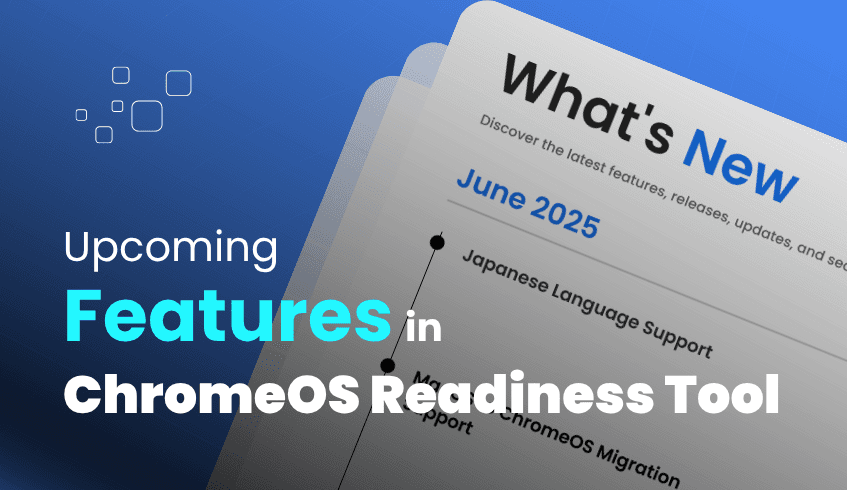
As organizations continue evolving toward secure, efficient, and cloud-first IT infrastructures, the ChromeOS Readiness Tool has emerged as a key enabler. Designed to assess your current environment applications, devices, and peripherals, the tool helps teams evaluate readiness and plan smooth transitions to ChromeOS.
With continuous improvements and feature rollouts, the tool is becoming even more powerful. Here’s a look at the latest enhancements and what’s ahead in the development roadmap.
In Version 1.10.2, released on May 31, 2025, the tool introduced a powerful new feature: a dedicated Virtualization section on both the Partner and Pro dashboards.
A key part of this update is the Cameyo Recommendation, which provides actionable insights for applications marked as ‘Possibly Ready’ or ‘Blocker’. The tool:
Highlights of which apps can be virtualized using Cameyo
Filters apps by usage level (High/Low)
Flags Cameyo compatibility status
Links directly to Cameyo website for further guidance
This gives IT teams the confidence to maintain access to possibly ready and blocker apps even if they aren’t natively ChromeOS compatible through strategic virtualization.
To support a broader range of migration scenarios, improve accessibility, and bring AI into the process, the development team is actively working on several exciting features:
To better serve international users, full Japanese localization is being introduced to the ChromeOS Readiness Tool. This update will make the tool fully accessible to Japanese speaking IT teams, enabling them to interact with dashboards, assessment summaries, and configuration options in their native language.
This not only streamlines the tool’s usability for organizations based in Japan but also benefits global enterprises with local offices or clients in Japanese markets. The localization covers everything from domain readiness visuals to application categorization, making the deployment process, results interpretation, and migration planning far more intuitive for Japanese speaking users.
Until now, the ChromeOS Readiness Tool has focused primarily on Windows based environments. To expand its utility, a significant new feature is in development to support macOS environment assessments. This will enable organizations currently using Apple devices to evaluate how their existing macOS applications, devices, and configurations align with ChromeOS compatibility requirements.
With this addition, the tool will provide tailored insights for macOS systems similar to what is already offered for Windows, allowing IT teams in Apple centric organizations to assess risk, identify blockers, and explore virtualization strategies or alternative solutions. This broadens the tool’s value proposition and ensures cross-platform readiness for organizations operating hybrid environments or planning an ecosystem shift.
The ChromeOS Readiness Tool is more than a compatibility scanner, it's evolving into a strategic migration companion. With recent improvements in Cameyo recommendations, the tool is well on its way to becoming an all in one IT transformation guide.
To stay updated, visit the official site at chromeosreadinesstool.com and enable notifications for feature announcements, blog insights, and expert guidance.
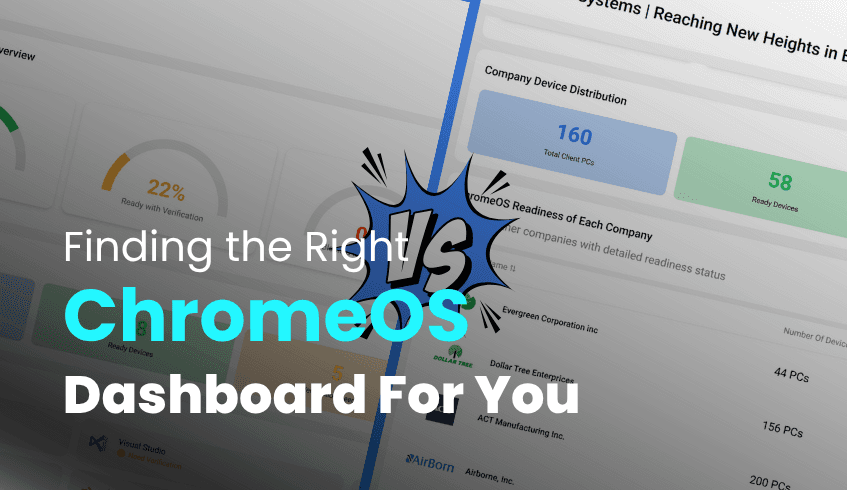
Migrating to ChromeOS is a strategic decision and success depends on a deep understanding of your current IT environment. The ChromeOS Readiness Tool simplifies this process through powerful assessments and a web-based dashboard that visualizes your organization's readiness.
But not all users interact with the tool the same way. Depending on your role, you’ll use either the Pro Dashboard or the Partner Dashboard. Here's what sets them apart and how to use them effectively.
The Pro Dashboard is designed for organizations conducting their own ChromeOS readiness assessments. It provides a comprehensive view of your internal environment:
Company wide readiness metrics by application, device, and peripheral
Application usage analysis, including foreground and background categorization
Filtering tools for device readiness status and application tags
Drill downs to domain or application level insights
Visit the web dashboard login page
Sign in using your Google account
Enter the private key generated during tool deployment
This key is required to unlock detailed readiness data and ensures access is restricted to authorized users.
Enterprise Flow (with Active Directory/GPO): The Pro Dashboard is available only if GCP Cloud Storage is enabled for assessment results
PowerShell Flow (cloud-based, UEM-friendly): The Pro Dashboard is available by default
The Partner Dashboard is built for Cloud Solution Providers (CSPs) or consultants who support multiple client organizations through the ChromeOS migration process.
This dashboard allows you to:
Manage and monitor multiple customer environments
View readiness insights across each customer domain
Filter and explore device, application, and peripheral compatibility per organization
Go to the web dashboard login page
Sign in with your Google account
Upload the customer’s encryption file (after data collection) to view their results securely
Enterprise Flow: Available to CSPs when GCP Cloud Storage is selected
PowerShell Flow: Available when deployed by a service provider
Choose the Pro Dashboard if you are an enterprise IT admin evaluating your own environment
Use the Partner Dashboard if you are a service provider managing readiness across multiple clients
Regardless of which dashboard you use, data security is a core design principle:
All collected data remains within your organization’s control
Data is encrypted using AES and RSA protocols
Access to readiness insights requires a private key
Local log files are secured via the encryption process
Unauthorized access is prevented only the relevant parties can view the collected data
The ChromeOS Readiness Tool delivers tailored visibility through the Pro and Partner dashboards, helping organizations and service providers alike make informed, confident decisions during migration. By understanding which dashboard fits your role and how to securely access it you can fully leverage the tool’s capabilities and accelerate your ChromeOS transformation.
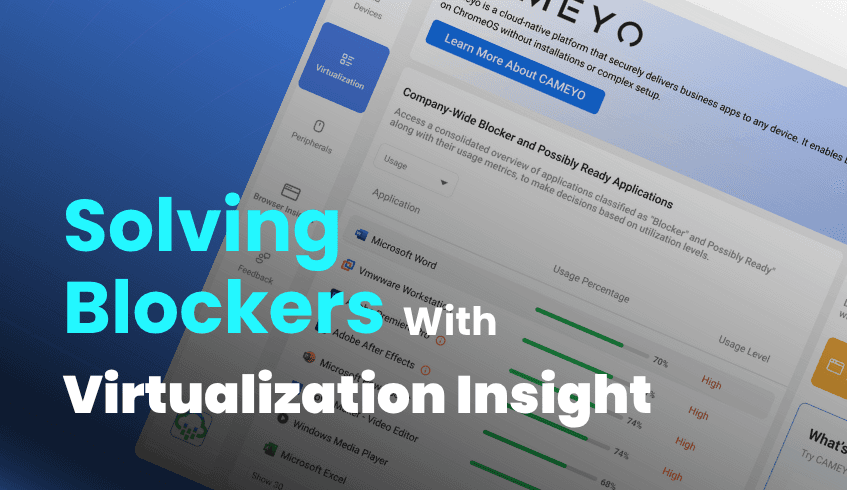
Migrating to a modern operating system like ChromeOS brings benefits in security, manageability, and cost-efficiency. But a common hurdle is application compatibility, particularly with legacy or specialized software that may not run natively on ChromeOS. These are known as "blocker" applications, and managing them effectively is essential for a smooth transition.
The ChromeOS Readiness Tool plays a key role in assessing compatibility across your organization. It scans installed Windows applications and classifies them as:
ChromeOS Ready
Possibly Ready
Blockers
While ready apps can transition easily, blockers require attention before migration. The tool helps IT teams identify these blockers early and assess remediation options, the most common being virtualization.
When apps aren’t natively compatible with ChromeOS, virtualization allows users to securely access those applications remotely via a server or cloud-based solution. The ChromeOS Readiness Tool doesn’t stop at flagging blockers, it also provides insights into which applications are suitable for virtualization, helping teams plan accordingly.
A dedicated Virtualization section is available on the tool’s web dashboard. It includes:
A breakdown of all "Possibly Ready" and "Blocker" apps
Filtering options by usage level (e.g., high/low usage)
Compatibility insights with Cameyo, a leading virtualization solution
Tooltips that explain when apps are incompatible or under review
A link to the Cameyo website for deeper exploration
This helps teams prioritize which apps can be virtualized and understand when alternative migration plans are needed.
These insights are available via the web-based dashboard,which presents the data in a more visual and comprehensive manner.Access to this data is protected by a private key, ensuring security and exclusivity for authorized personnel only.
The ChromeOS Readiness Tool gives IT leaders the clarity and tools to solve for blockers not just by identifying them, but by offering strategic virtualization paths. By integrating solutions like Cameyo, the tool empowers teams to minimize disruption and maximize continuity during migration.
This is how ChromeOS readiness becomes more than an assessment, it becomes a roadmap!
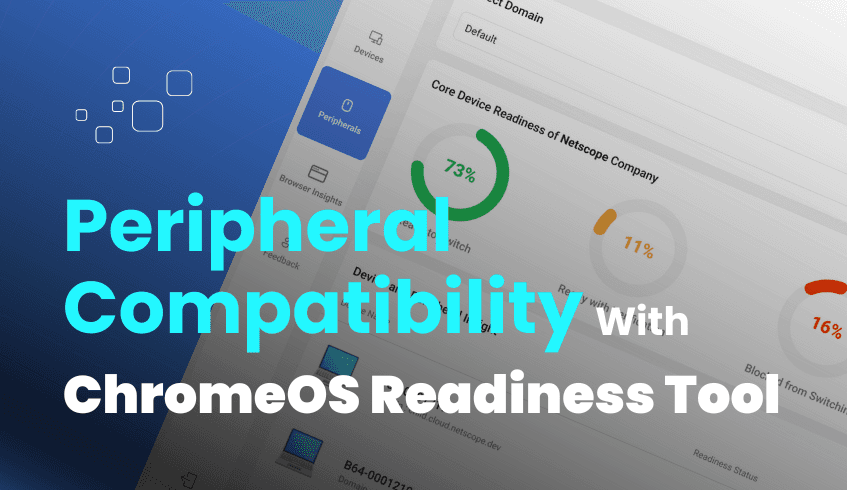
Migrating your organization’s IT infrastructure to a modern, cloud-based operating system like ChromeOS can unlock a host of benefits with enhanced security, reduced costs, and simplified management among them. But a successful migration involves more than just evaluating laptops and applications. One often overlooked yet vital component is peripheral compatibility.
That’s where the ChromeOS Readiness Tool comes in.
While the ChromeOS Readiness Tool is widely recognized for assessing application usage and device compatibility, it also provides detailed insights into how well your existing peripherals, such as printers, scanners, and monitors, will function in ChromeOS. The ChromeOS Readiness Tool now assesses barcode scanner, receipt printer and label printer as well, which are newly updated.
These devices are integral to daily workflows. Incompatibility could mean disruptions to productivity or even the need for expensive replacements. ChromeOS Readiness Tool helps you avoid such surprises by identifying which peripherals are ready, potentially ready, or not compatible at all before migration begins.
The intuitive web-based dashboard offers rich, at-a-glance insights into peripheral readiness:
The core readiness status of your organization is shown in percentage values.
Visual breakdown of device and peripheral distribution.
Comparative graphs displaying core vs. peripheral device readiness.
Detailed listings with device names, models, categories, readiness status, and device count.
Filtering options to narrow down devices based on their readiness status.
These insights are available within both the Pro and Partner dashboard views, helping IT administrators and service providers understand readiness levels across departments or client organizations.
For more advanced analytics, ChromeOS Readiness Tool allows administrators to download raw data in Excel and PDF format. One especially valuable export is the "Peripheral Overview Report", which aggregates and summarizes peripheral readiness across the organization.
These exports can be used directly or plugged into data visualization platforms like Looker, Tableau, or Power BI to tailor insights for executive or technical audiences.
By leveraging the peripheral compatibility insights from the ChromeOS Readiness Tool, organizations can take a holistic approach to migration planning. This proactive readiness check ensures minimal disruptions, smoother deployment, and a faster path to realizing the full benefits of ChromeOS.
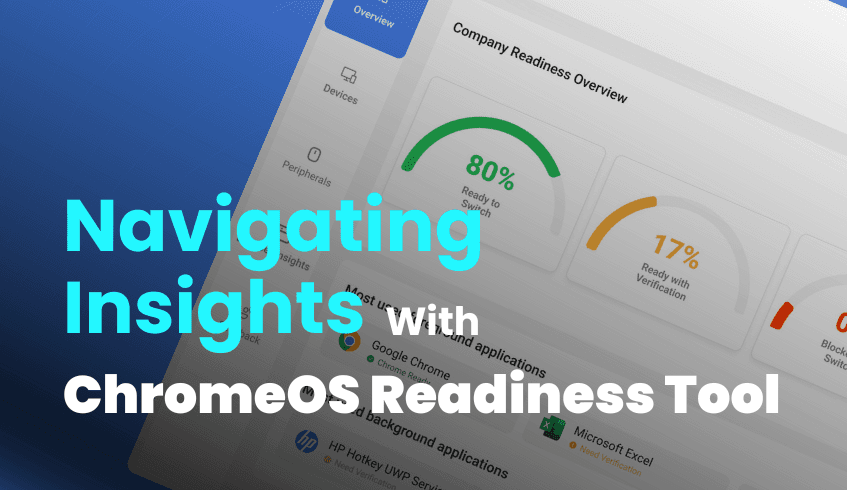
Migrating to ChromeOS can unlock new levels of flexibility, simplicity, and security for your workforce. But to ensure a smooth transition, IT teams need complete visibility into the current state of their environment. That’s where the ChromeOS Readiness Tool comes in, and at the heart of its value is the intuitive web dashboard.
The web UI transforms complex compatibility data into clear, actionable insights. Designed for ease of use, it allows you to assess application and device readiness at a glance while enabling deep dives into granular data for planning your migration with confidence.
Upon logging into the dashboard, users are greeted with an entire organization readiness overview, a visual summary that reflects how prepared their environment is for migration to ChromeOS or ChromeOS Flex. From there, the dashboard breaks down your data by category, providing insight into:
Application compatibility
Device readiness
Peripheral support
Browser usage
These insights allow IT teams to make informed, data-driven decisions, reducing uncertainty and helping avoid surprises during migration.
Drill down by device to see which apps are used and their readiness.
View top background and foreground apps used across your organization and their compatibility status.
Identify which devices are ready for ChromeOS or require further action.
Use interactive pie charts to see the percentage breakdown of readiness statuses for each domain within the organization.
Filter and view detailed information for each device in your domain via sortable tables.
Get an overview of connected peripherals, printers, scanners, monitors, barcode scanner, receipt printer and label printer.
Additionally, see whether the core devices are compatible with ChromeOS Flex as well.
Monitor browser usage across the organization, including Chrome, Edge, Firefox, Opera, Vivaldi, and Brave.
View browser version breakdowns and detailed extension data.
To protect sensitive organizational data it is made sure that the data is encrypted, following that the dashboard employs a private key-based access model. Only users who possess the private key generated during deployment can unlock and view the data. This ensures strict control over who can access migration insights.
Additionally, there are two dashboard versions available.
Pro Dashboard (For Direct Customers)
Partner Dashboard (For Partners)
The ChromeOS Readiness Tool’s web dashboard is more than a reporting interface, it’s a strategic migration planner. With visibility into every layer of compatibility, from applications to devices to peripherals, the dashboard enables IT teams to:
Streamline the transition process
Proactively address compatibility issues
Eliminate uncertainty with data-driven planning
By turning insights into action, the dashboard helps organizations reduce the complexity of migration and take full advantage of everything ChromeOS has to offer.
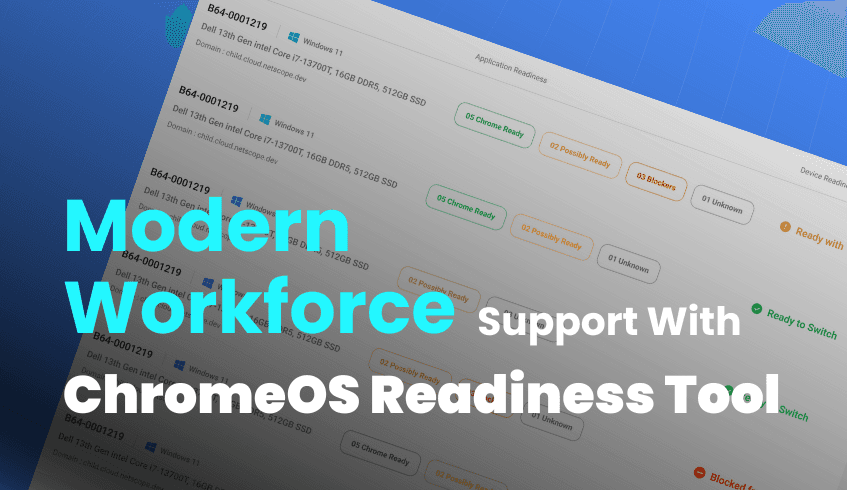
In today’s evolving workplace, enabling remote and hybrid work models has become essential, not just for employee flexibility but for maintaining agility and competitiveness in a digital-first world. As organizations embrace this shift, having the right IT infrastructure is critical to ensure employees can work securely and productively from anywhere.
Transitioning to cloud-based platforms like ChromeOS offers significant benefits for supporting the modern workforce. But before making the switch, organizations must understand the current state of their IT environment. That’s where the ChromeOS Readiness Tool plays a vital role.
The ChromeOS Readiness Tool is a comprehensive assessment solution that evaluates your existing Windows environment to determine compatibility with ChromeOS. It analyzes key areas such as:
Device compatibility based on application usage
Peripheral compatibility
From this data, the tool generates actionable insights to support a smooth migration, helping IT teams minimize disruption and maximize efficiency.
One of the tool’s strengths is its clear categorization of readiness:
Applications are labeled as: ChromeOS Ready Possibly Ready Blockers
Devices are classified as: Ready to Switch Ready with Verification Blocked from Switching
These categories provide IT teams with a roadmap to identify challenges early and address them proactively. In cases where essential applications appear as blockers and possibly ready, solutions like virtualization can be explored to maintain continuity.
While the tool assesses readiness, its value extends far beyond migration planning. By enabling a smooth transition to ChromeOS, organizations unlock a platform purpose built for remote and hybrid work. Benefits include:
Seamless access from anywhere, on any device
Deep integration with collaboration tools like Google Workspace
Built-in security features like sandboxing and verified boot
Cloud-based device management and zero-touch enrollment for streamlined IT operations
These capabilities allow organizations to equip their workforce with secure, flexible tools while reducing IT overhead and enhancing operational resilience.
Security remains a top concern in distributed work environments. ChromeOS addresses this through its secure by design architecture, reducing dependence on third-party tools and providing IT teams with peace of mind.
At the same time, centralized cloud management and rapid deployment capabilities mean IT can scale quickly in critical ways for businesses navigating workforce expansion or device refreshes.
Getting started is simple:
Run the ChromeOS Readiness Tool to assess your environment.
Review the insights on app, device, and peripheral compatibility.
Use the results to develop a tailored migration plan.
By taking this foundational step, organizations position themselves to transition smoothly to a cloud-first model, empowering employees with the freedom to work from anywhere, and setting the stage for long-term digital success.